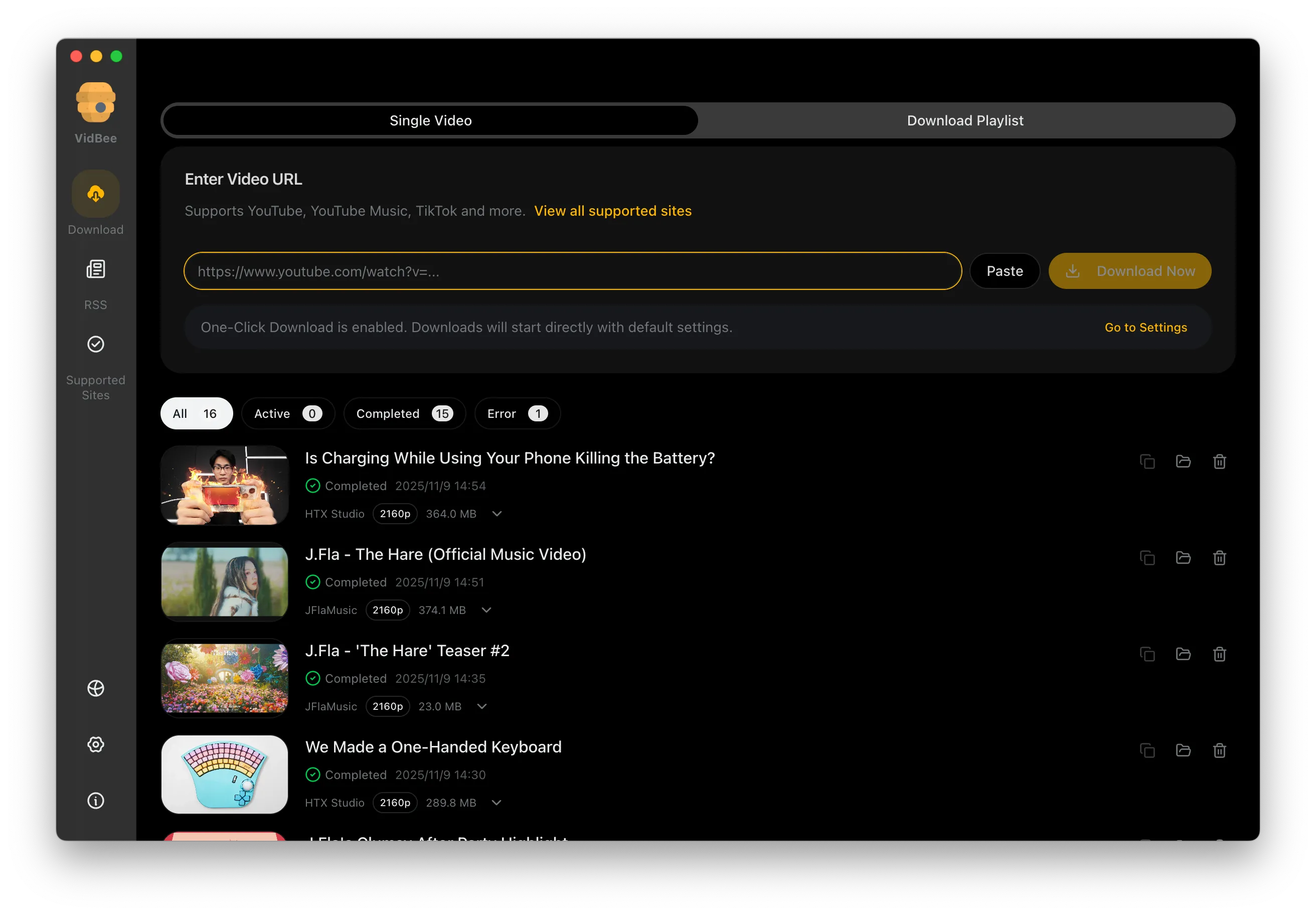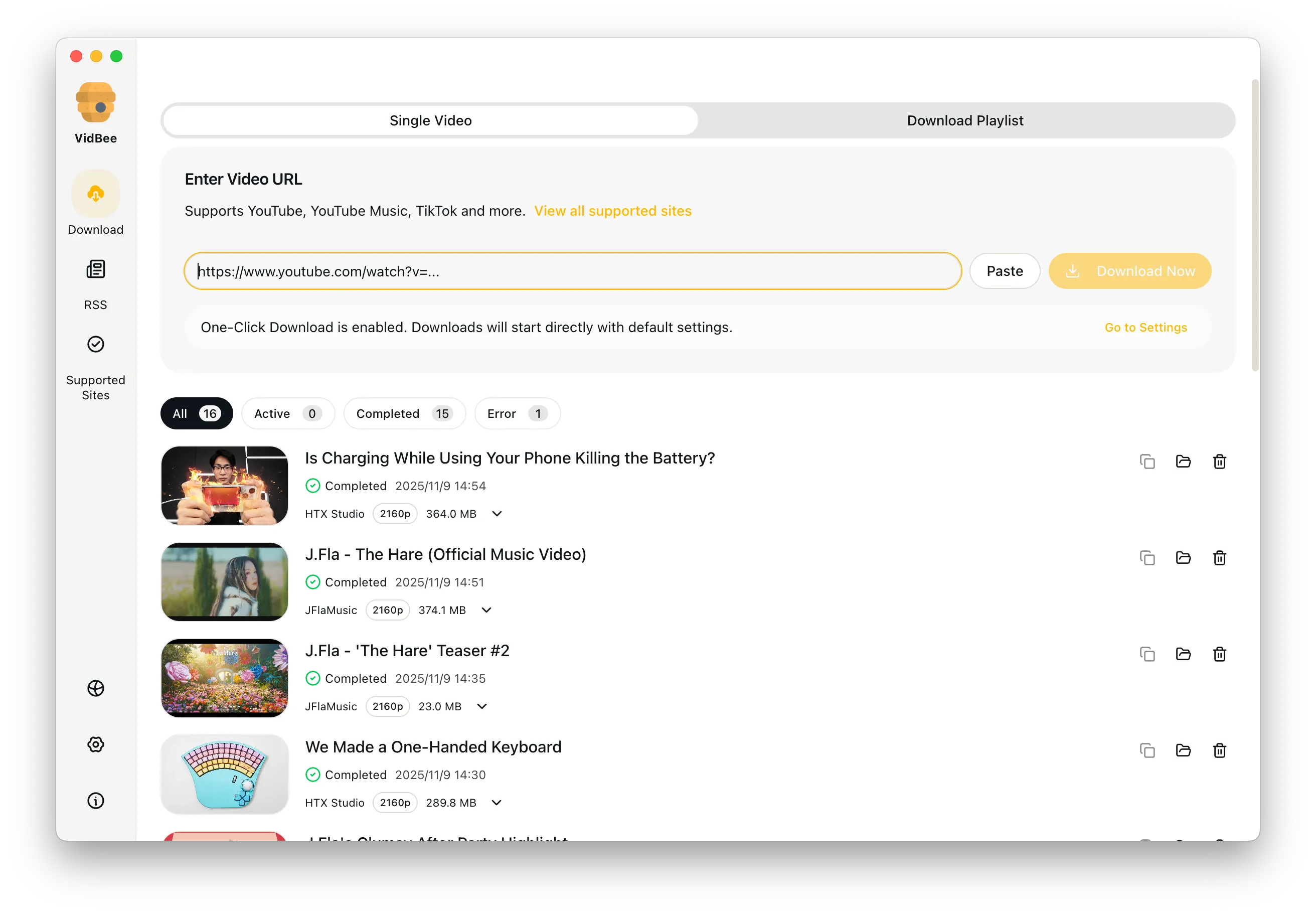

YouTube playlist downloader interface preview

YouTube Playlist Downloader

Load a permitted public YouTube playlist, review the entries you want to save, and track each item in the desktop queue. Source access and available formats still apply to every video.

Free Download

Completely free. No registration or account required.

Entry selection/Individual task status/Local files/Source-dependent formats

Check the playlist stage that needs attention

A playlist is a group of separate sources and tasks.

  • The playlist contains inaccessible or removed items
  • Loaded, selected and completed counts do not match
  • Different videos offer different output formats
  • A failed item needs a separate diagnosis

Review and download a YouTube playlist

Keep the returned list, selected tasks and completed files separate.

  1. 1

    Choose a small permitted playlist

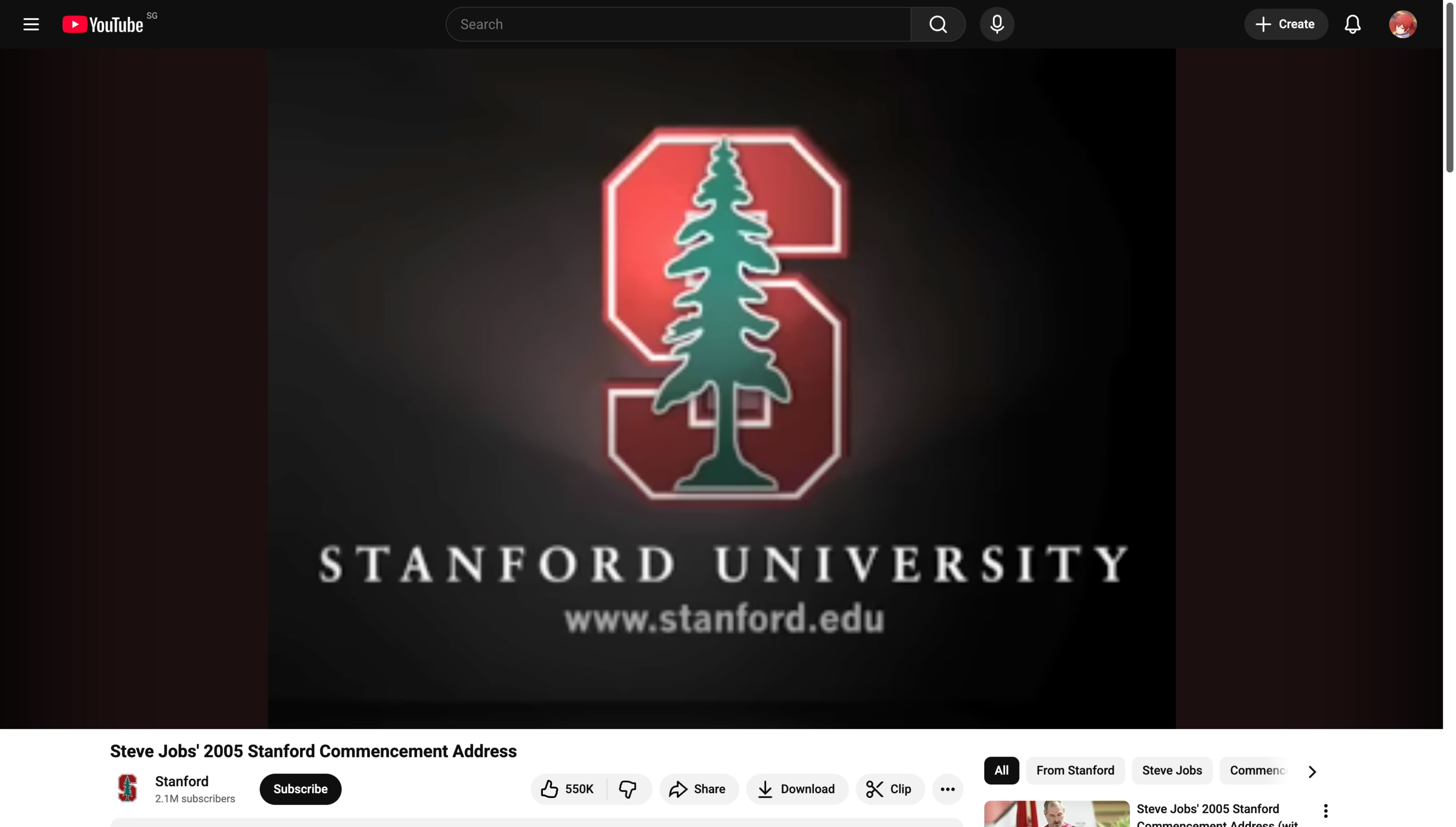
    Start with a public playlist containing a few videos you own or may download. Copy the playlist URL. Private lists, Watch Later and mixes can require account access and are not guaranteed imports.

  2. 2

    Load the list for review

    Open Add URL, paste the playlist link, turn off One-Click Download and choose Fetch. Wait for the returned list before counting or selecting items.

  3. 3

    Choose the entries you need

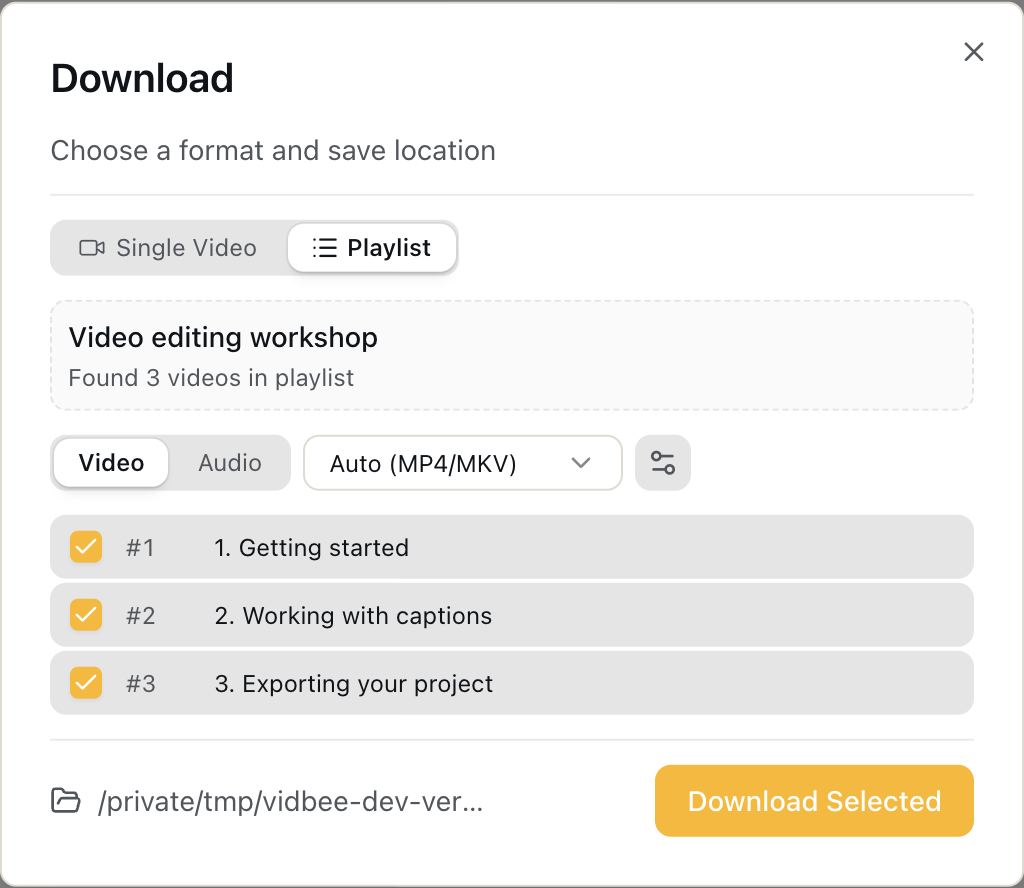
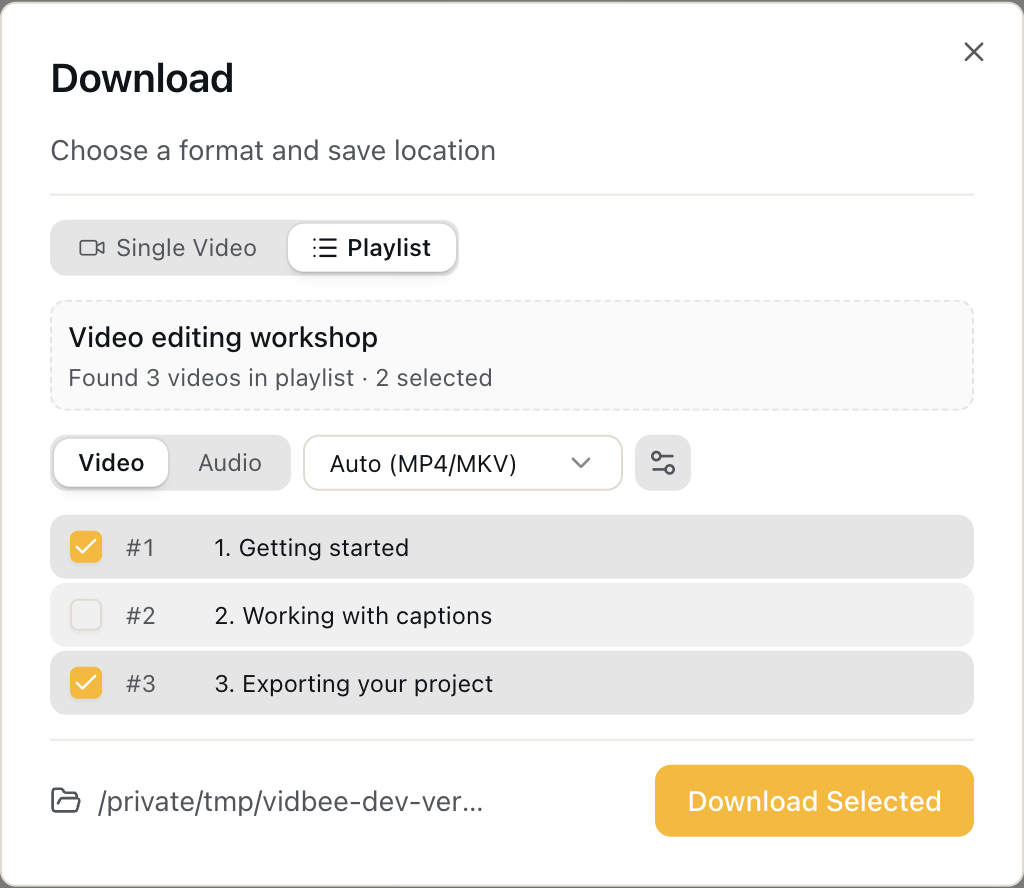
    Review the loaded entries and deselect anything you do not want. Note the number selected; an inaccessible item can fail separately from the rest of the list.

  4. 4

    Check output choices and the folder

    Choose the available output type and quality. Check Download location in General settings. Availability can differ by entry; a playlist does not guarantee one resolution for every video.

  5. 5

    Review individual queue results

    Choose Download Selected, then compare queued, completed and failed items. Open the output folder and count the files that actually finished.

  6. 6

    Handle failed entries separately

    Read the failing task message, fix source access or change to an available format, then use the retry control. Inspect the existing destination files before rerunning the whole playlist.

Playlist dialog with three sample entries selected
Review the loaded entries before starting. Illustrative demo data in VidBee dev, captured September 30, 2026; released versions may differ.
Playlist dialog with two of three sample entries selected
This example selects entries 1 and 3 from a three-item list. Illustrative demo data in VidBee dev, captured September 30, 2026; released versions may differ.
Example queue showing two selected playlist tasks completed
The two selected tasks are shown as completed in the demo queue. This is mock status data, not a measured download result. Illustrative demo data in VidBee dev, captured September 30, 2026; released versions may differ.

Loaded entries, selected tasks and completed files

These counts describe different stages.

Review before queuing

A returned playlist entry is a candidate for downloading. Select only the entries you need, then check their individual queue status. Count files in the destination after completion rather than assuming every loaded entry produced a file.

Source access applies to each video

Private, deleted, age-restricted or account-dependent entries may not be available. Use only access your account is entitled to use. VidBee does not bypass DRM or platform restrictions.

Video and audio outputs

Match the output to source availability.

Audio-only tasks

Choose an audio output for permitted media when the task offers it. Check the resulting extension and play the exported file. A filename ending in MP3 is not proof that conversion completed.

A consistent folder

Set the destination before starting the playlist and inspect what was saved. Do not assume that rerunning a list will always replace, skip or deduplicate existing files; check the task settings and result.

Retries and transcripts

Finish the download before using the saved media.

Retry the failing task

A visible failure is useful information. Check the message, original source and offered formats; after fixing the cause, retry that item and confirm a playable output. Repeated fetching is not a guarantee of recovery.

Captions or local speech recognition

Source captions need to exist and be accessible. For a saved file without captions, use the separate local transcription workflow. The browser subtitle tool only extracts an embedded text track.

Download Videos

Cinematic Background

Download YouTube Playlists, Channels, and Search Results

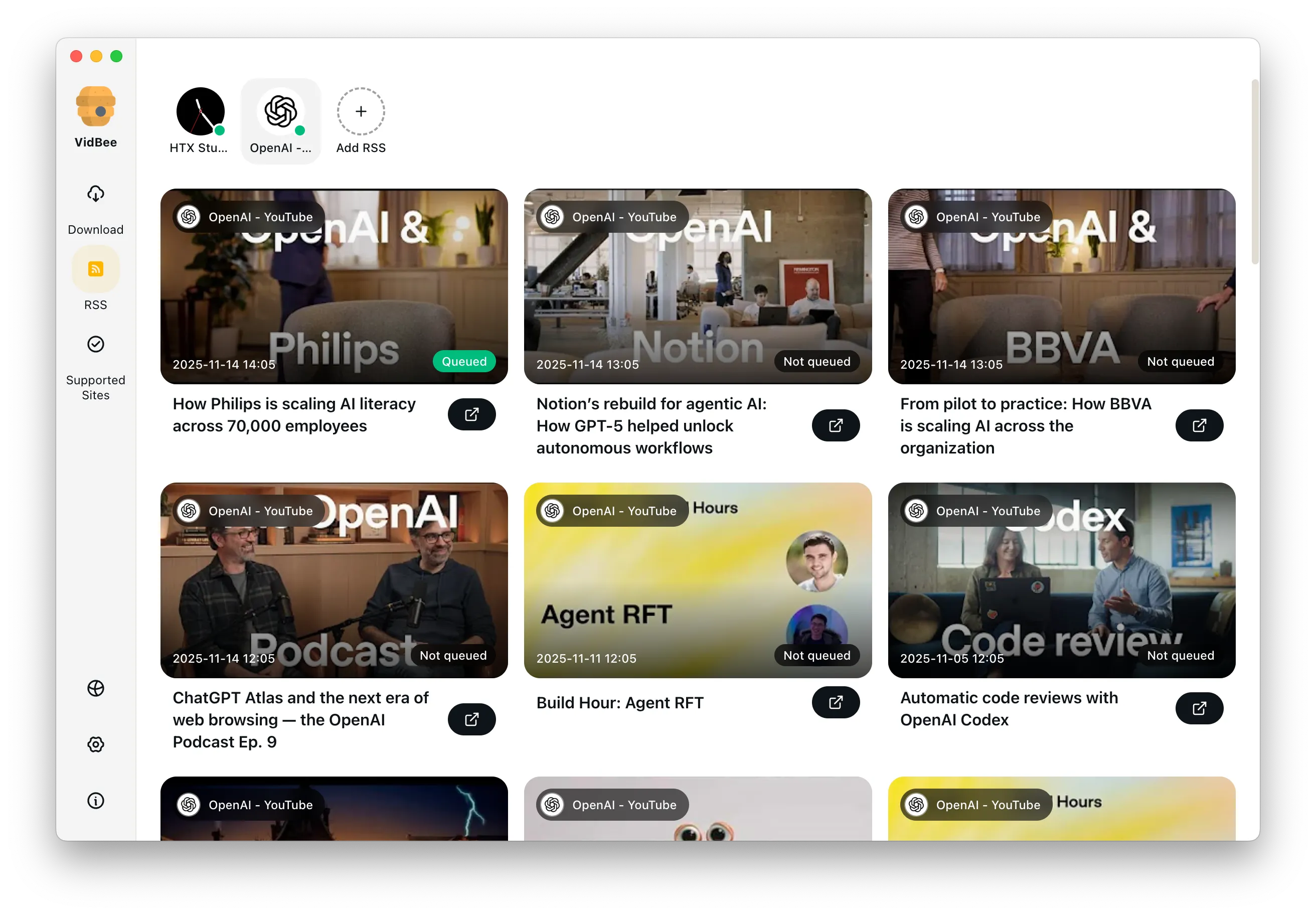
Save playlists, channels, and search results from YouTube in high quality. Download YouTube Watch Later, Liked videos, and private YouTube playlists.

Subscription Auto Download & Batch Processing
Interface Preview
Landscape Background

Extract YouTube Subtitles

Download annotations and subtitles along with YouTube videos. Save them in SRT format and choose from 50+ languages.

Subtitles Interface
Landscape

Get Videos in 4K & 8K

Download videos in HD 720p, 1080p, 4K, and 8K resolution. Enjoy high definition on any device.

Video Quality Interface

YouTube playlist downloader FAQ

Answers for playlist queues, MP3/audio safety, desktop-vs-online workflows, subtitles, and open-source download control.

Review the loaded entries before queuing and select the items you need. Check the number of selected tasks and the number of completed files separately.

Start saving YouTube playlists faster

Install VidBee once and turn long playlist downloads into a single desktop queue. Completely free, with no registration or account required.

Only download content that is publicly accessible and that you have the right to use. Respect copyright and each platform's terms of service.

Resources